
Tests & Operations
(Ops Graph)
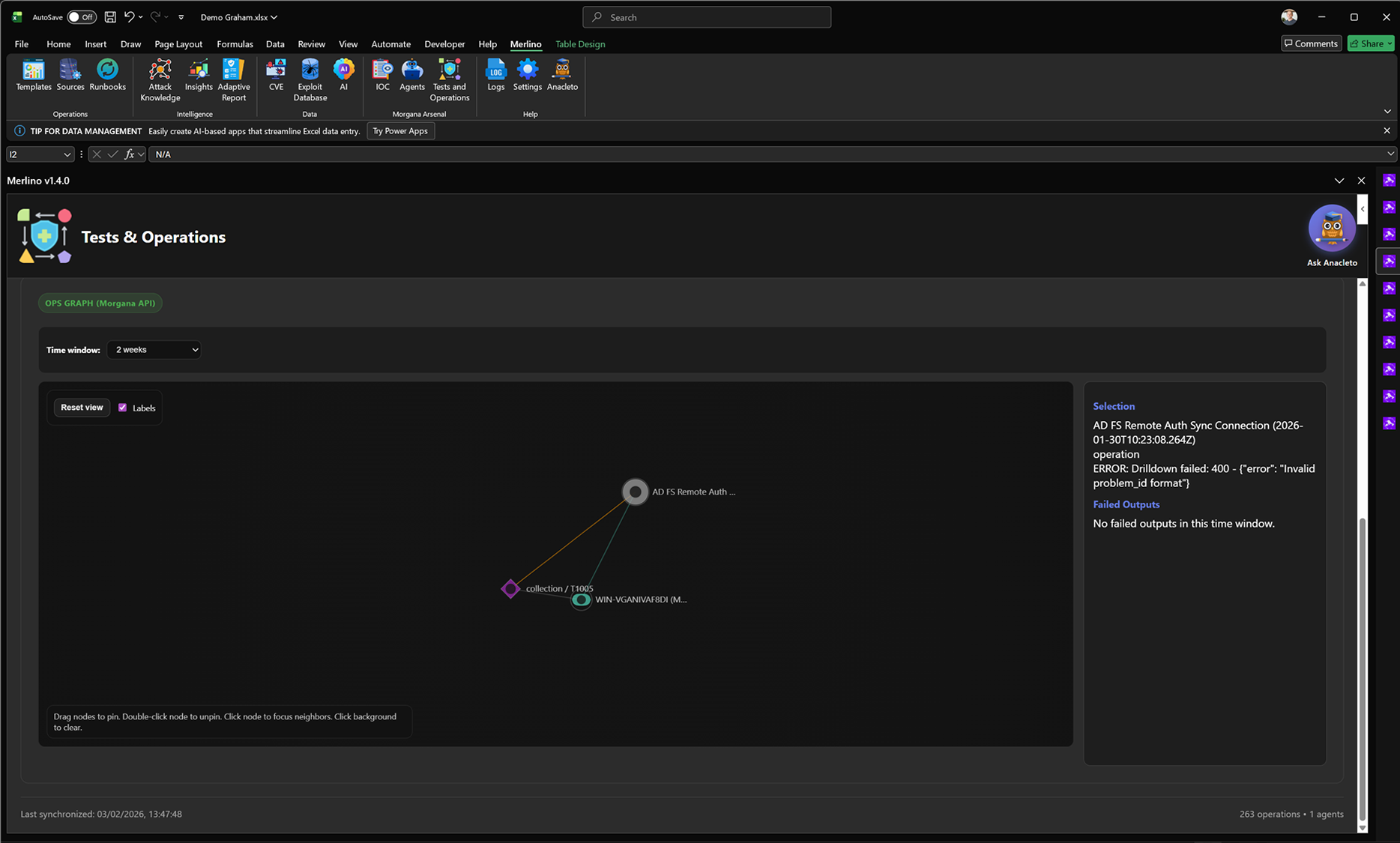
Tests & Operations (Ops Graph)
Ops Graph is the force-directed relationship view for Tests & Operations. It visualizes the links between operations and the entities involved in execution—abilities, agents, targets, and associated TTPs—so you can explore what happened and how components connect, without relying only on tables.
What it is
Ops Graph turns operational execution telemetry into a navigable graph. Each node represents a core execution entity and each edge represents a relationship (for example: an operation uses an ability, an ability runs on a target via an agent, and the activity is linked to one or more techniques/TTPs). The force-directed layout clusters related entities naturally, helping you see structure and dependencies at a glance.
Entities represented in the graph
- Operations: the execution containers created for a scenario, test set, or validation run.
- Abilities: atomic actions/tests executed as part of an operation (aligned to your catalogue and TTP mapping).
- Agents: the deployed execution agents used to run abilities on target machines.
- TTP links: technique identifiers or contextual nodes that connect execution back to ATT&CK mapping (where available).
Time window and scope control
Ops Graph supports a selectable time window so you can focus analysis on a relevant period (for example the last two weeks). This reduces noise and makes the graph actionable during investigations and post-run review. The view can be reset at any time to return to the default clustering.
- Time window: filter graph entities to the selected period for targeted analysis.
- Reset view: clear focus and return to the full relationship view quickly.
- Labels toggle: enable or hide labels to improve readability depending on density.
Interactive navigation
The graph is built for fast pivoting. You can click a node to focus its neighborhood, drag nodes to pin them in place, and explore relationships without losing context. This supports both operational analysis and troubleshooting.
- Focus neighbors: click a node to highlight connected entities and reduce visual noise.
- Pin nodes: drag nodes to keep key entities fixed while you explore surrounding relationships.
- Unpin quickly: double-click pinned nodes to release them back into the force layout.
- Clear selection: click the background to remove focus and return to the broader view.
Selection panel
When you select a node, Merlino displays additional information in the selection panel, such as the operation name, identifiers, and execution-related details. Where available, it can surface recent failed outputs within the selected time window to accelerate triage.
Why it matters
Ops Graph complements performance and error dashboards by showing relationships visually. It makes it easier to understand how execution is structured, which agents and targets are involved, where failures cluster, and which operations share dependencies. This supports faster troubleshooting and clearer evidence tracing from operations back to tests and TTPs.
Note: Ops Graph is synchronized from Morgana (Caldera) via the Morgana API. The quality and completeness of relationships depend on the execution telemetry available for the selected time window.